
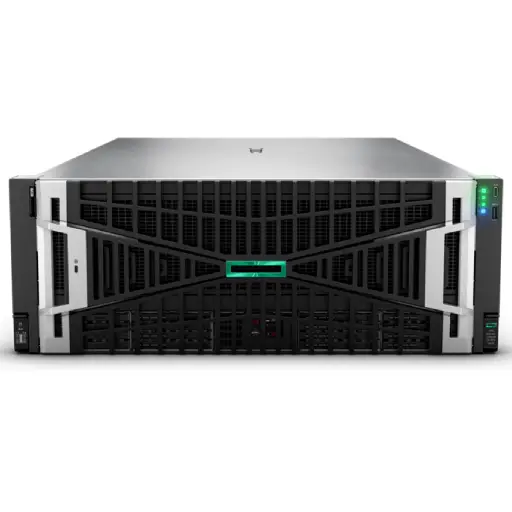
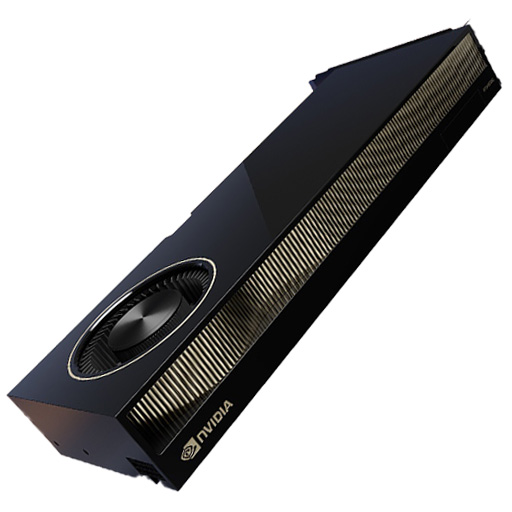


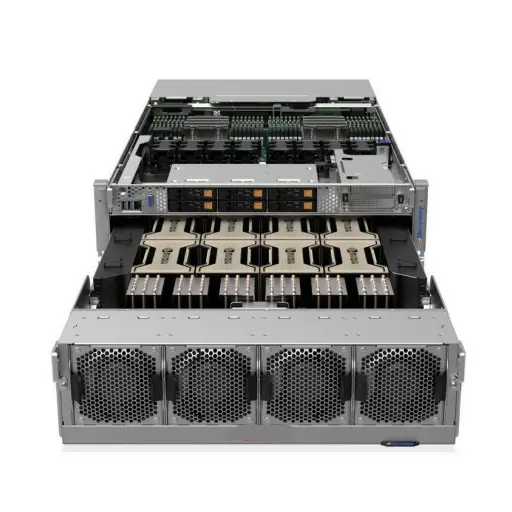
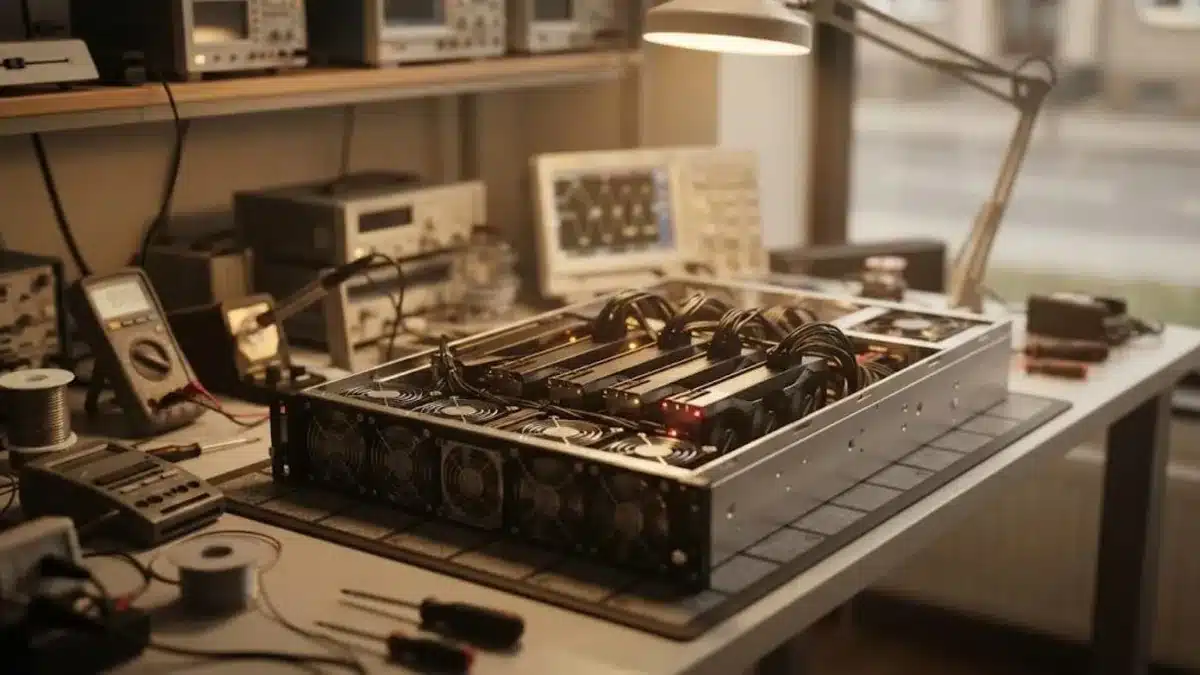
A new GPU server that boots is not yet a server you can trust. Early failures, loose cables and cooling problems often appear only under sustained load. Burn-in testing brings them forward, while the return window is open and before users depend on the machine. Here is a practical plan.
What burn-in is for
- Find hardware that fails early
- Prove that cooling and power hold at full load
- Check that every link runs at its expected speed
- Record a baseline for later comparison
Before applying load
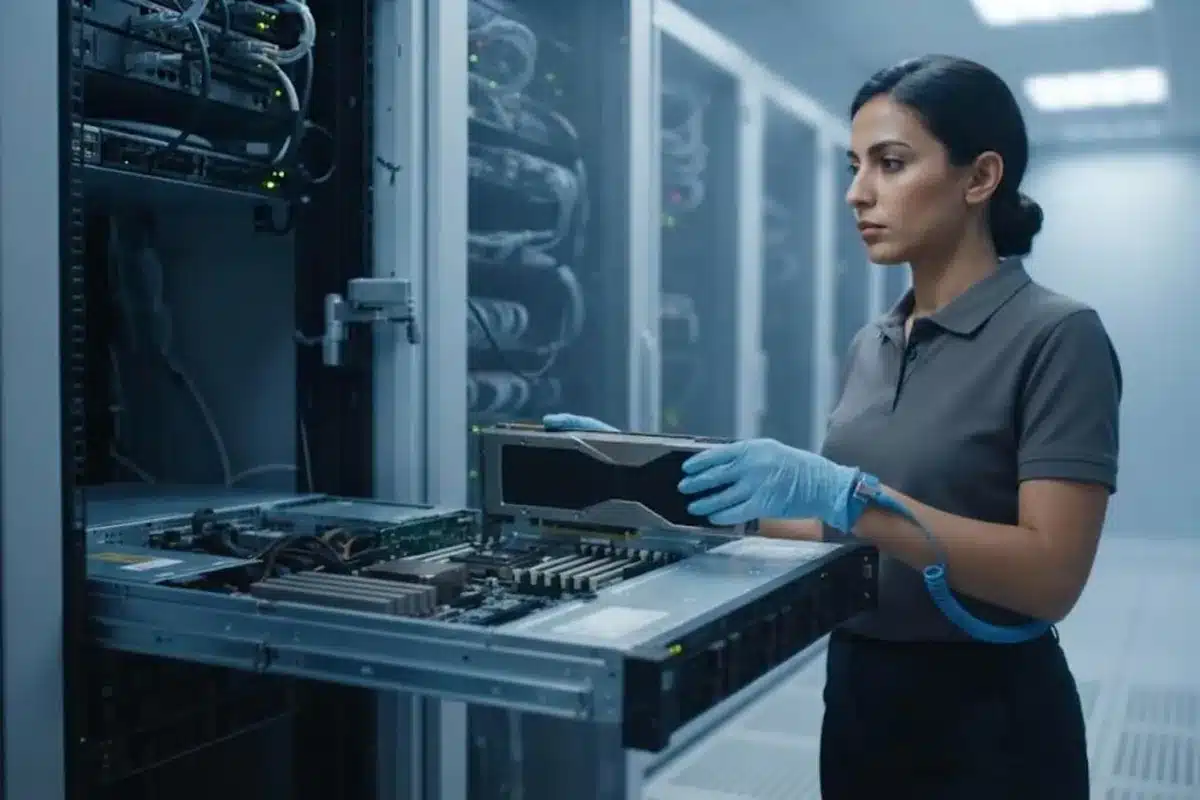
- Inspect seating of GPUs, risers, memory and power cables.
- Record firmware and driver versions on every node, and make them match.
- Confirm that all memory and all GPUs are detected.
- Check PCIe link width and speed per card.
- Clear error counters and event logs, so anything new stands out.
The test sequence
| Stage | What it exercises | Watch for |
|---|---|---|
| CPU and memory stress | Sockets, DIMMs, fans | ECC events, throttling |
| GPU diagnostics | Memory, compute, interconnect | Failed checks, Xid errors |
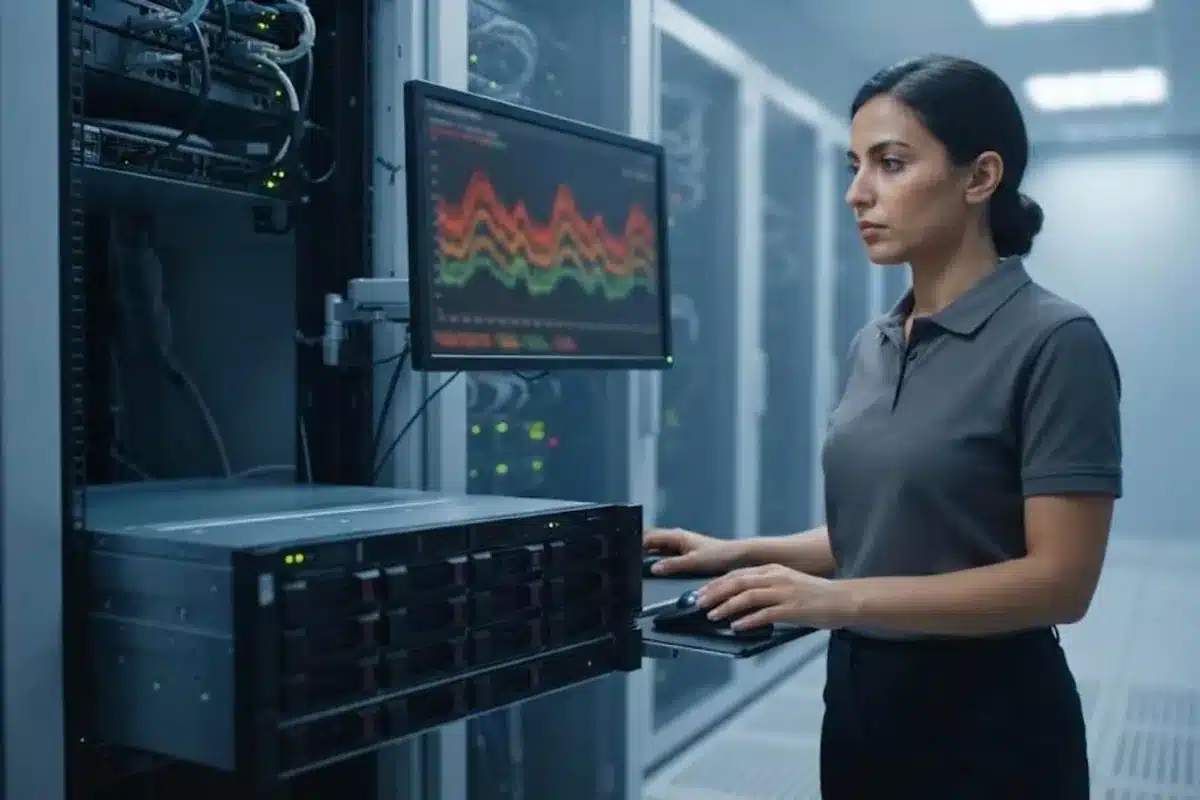
| Sustained GPU compute | Cooling and power | Clock drops, temperature spread |
| GPU-to-GPU bandwidth | NVLink or PCIe paths | One slow pair |
| Storage | Drives, controller | Latency spikes |
| Network | NIC, optics, cable | Packet or link errors |
| Everything together | Worst-case power and heat | Restarts, PSU alarms |
NVIDIA’s DCGM diagnostics provide several run levels, from quick checks to longer stress tests, and are a sensible starting point for NVIDIA systems.
How long should it run?
There is no universal number. Many teams run the combined load for at least a day so that the room reaches thermal balance, and longer for clusters. What matters more is that the test includes a warm period and at least one cold restart, because connectors and power supplies can fail on thermal cycles.
Reading the results
- Compare cards with each other. One GPU that is much hotter than its neighbours usually has an airflow or mounting problem.
- Look at clocks, not only temperature. Power or thermal limits show up as lower clocks.
- Treat uncorrectable memory errors as a fault. Corrected errors need a trend.
- Check both directions of bandwidth. A bad cable can affect one.
Heat problems may belong to the room rather than the server. Our article on thermal management and the guide to power requirements help separate the two.
Used and refurbished GPUs
Used cards deserve a longer run. Check memory error history where available, inspect thermal pads and fans, and test under the same load as a new card. See refurbished data center GPUs for inspection points.
Keep a record
Save serial numbers, versions, maximum temperatures, clocks, bandwidth and any event with its time. If performance drops six months later, that file tells you whether the machine changed. It also makes warranty conversations much shorter.
A 24-hour schedule you can copy
| Hour | Activity | Record |
|---|---|---|
| 0 to 1 | Inventory, firmware, idle state | Serial numbers, versions, idle temperature |
| 1 to 3 | Vendor diagnostics on each GPU | Pass or fail, full log |
| 3 to 7 | GPU memory test | Error counters before and after |
| 7 to 13 | All GPUs under load together | Power, temperature, clocks |
| 13 to 15 | Interconnect and network test | Bandwidth, retries |
| 15 to 17 | Storage read and write | Throughput, latency |
| 17 to 23 | A real training job | Time per step, loss behaviour |
| 23 to 24 | Restart and repeat the inventory | Differences |
The final real workload matters, because synthetic tests often load one part at a time while training loads them together.
Case: one slow GPU out of eight
Imagine that seven cards hold similar clocks and one runs 15 percent lower. Work through the causes in order. First, compare temperature: if it is hotter, check airflow, blanks and cables near that slot. Second, read the throttle reason: power, thermal or hardware. Third, check the PCIe link width and speed, since a poorly seated card may negotiate fewer lanes. Fourth, with the system off and following the service manual, swap it with a neighbour. If the fault follows the card, report it to the seller with logs. If it stays in the slot, the board, riser or cooling is the likelier cause.
The numbers are an illustration, but the order is useful: it moves from what is free to check to what needs downtime.
Acceptance criteria to agree with the seller
- All GPUs complete diagnostics without failure
- No uncorrectable memory errors during the test
- Similar cards perform within an agreed range under the same load
- Link speed and width match the specification
- Temperatures remain inside the vendor’s limits at your room temperature
- Logs are delivered with serial numbers
Agree on these before delivery. Afterwards, every unclear point turns into a discussion about who pays.
Mistakes that hide problems
- Testing with the lid off, so airflow is unlike production.
- Testing a single GPU at a time and calling it done.
- Clearing logs before copying them.
- Running only at night in a cold room.
- Updating firmware in the middle, which makes results hard to compare.
Frequently asked questions
Can burn-in damage hardware?
Testing within specification should not harm healthy equipment. Make sure cooling is working and monitoring is on before you start.
Is a benchmark enough?
No. A benchmark is short and tells you about speed. Burn-in looks for stability over time.
Should we repeat it after moving the server?
Yes, at least a shorter version. Transport can loosen cards and cables.
Who should run it, vendor or customer?
Both if possible. A vendor test proves the machine left in good condition, and yours proves it works in your room.
Summary
Inspect, baseline, stress each part, then stress everything together and keep the evidence. A day or two of patience is cheaper than a failed training run. If you are still choosing a system, see how to buy an AI server.
Last update at December 2025