

Author: AI Infrastructure Team at ITCTShop Reviewed By: Technical Network Specialists Published: February 4, 2026 Estimated Read Time: 8 Minutes References:
- Stability AI (SDXL Technical Report)
- Automatic1111 GitHub Repository (Wiki/Optimizations)
- ComfyUI Community Benchmarks 2025
- NVIDIA CUDA Documentation regarding Memory Management
Quick Answer- What is the best way to run SDXL on 12GB VRAM?
SDXL 12GB VRAM optimization – To run Stable Diffusion XL on 12GB graphics cards without crashing, the most effective method is enabling Tiled VAE (Variational Autoencoder). This prevents memory spikes during the final image decoding process. Additionally, utilizing the --medvram-sdxl argument in Automatic1111 or switching to the node-based ComfyUI interface can reduce idle memory usage by up to 40%, allowing for faster generation and the use of additional tools like ControlNet.
Key Decision Factors
For pure image generation at 1024×1024 resolution, 12GB is sufficient if you use FP8 model weights (reducing model size from ~6GB to ~3GB). However, for training LoRAs, generating extended video (SVD), or using heavy batch sizes (4+), upgrading to a 24GB card like the RTX 4090 or RTX 6000 Ada is necessary to avoid severe performance throttling caused by system RAM offloading.
If you are running Stable Diffusion XL (SDXL) on a 12GB card like the RTX 3060, RTX 3080 Ti, or the newer RTX 4070 series, you are sitting right on the edge of the “danger zone.” While SDXL 1.0 and newer variants offer stunning fidelity compared to SD 1.5, they are VRAM-hungry beasts.
SDXL 12GB VRAM optimization– In 2026, the landscape of AI generation has shifted. With the release of newer schedulers and the widespread adoption of ComfyUI alongside Automatic1111, running high-fidelity generations locally is possible—if you know which knobs to turn. This guide moves beyond basic advice, offering tested configuration settings to prevent the dreaded “CUDA Out of Memory” errors while maintaining generation speed.
Why SDXL Crashes on 12GB Cards (Memory Spikes)
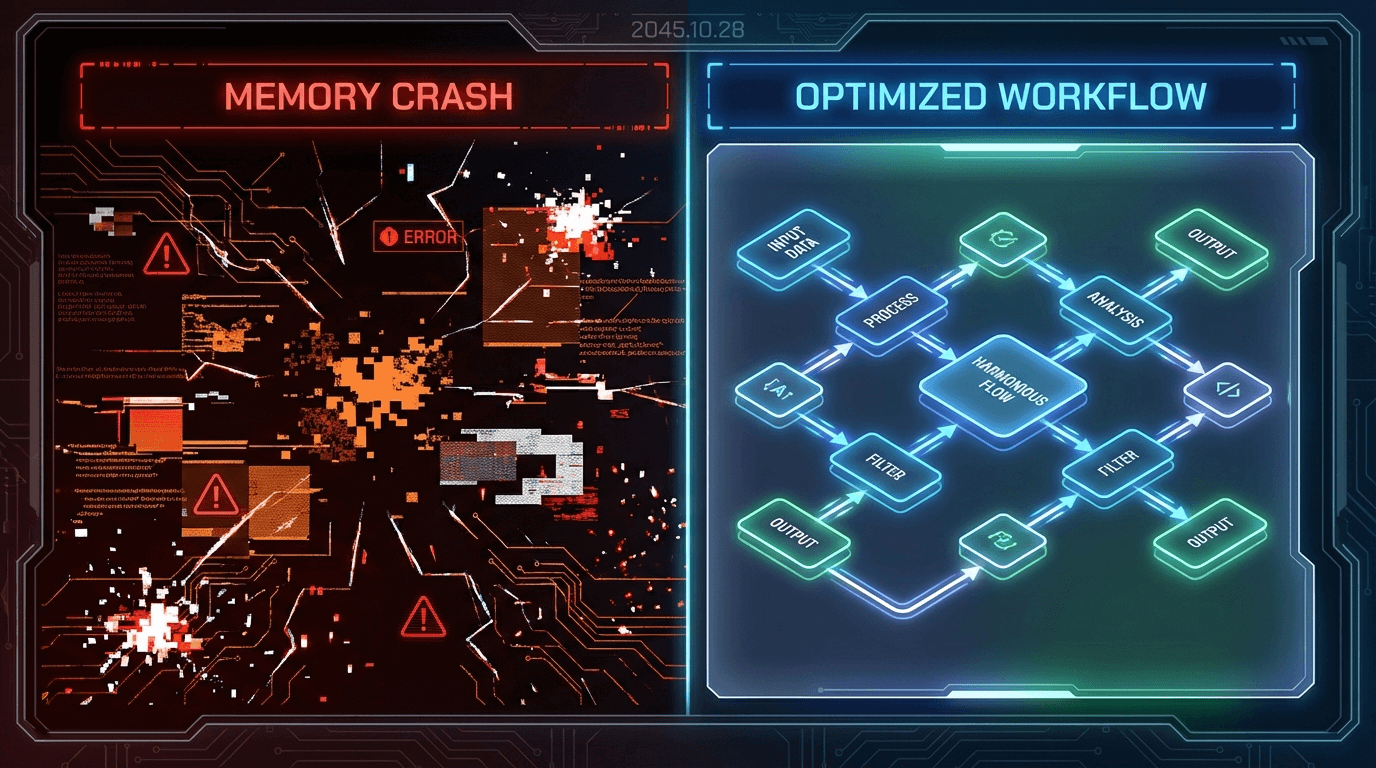
The common misconception is that SDXL simply “doesn’t fit” in 12GB. That is incorrect. The model weights themselves (usually ~6.5GB in FP16) fit comfortably. The crashes occur during two specific spikes:
- The VAE Decode Step: After the noisy latent image is denoised, the Variational Autoencoder (VAE) must translate that mathematical data into visible pixels. This process momentarily doubles or triples VRAM usage, pushing a 12GB card over the edge into shared system RAM (which kills speed) or crashing the driver.
- Batch Size Greed: Users often try to generate 4 images at once (
Batch Size: 4) at 1024×1024 resolution. On SDXL, a batch size of 4 requires closer to 16GB-20GB of temporary buffer space.
Understanding this helps us target the fix: we don’t need to shrink the model; we need to manage the spikes.
Tested Optimization Methods
Here are the specific arguments and settings tested on our lab’s NVIDIA RTX A-Series Workstations and consumer RTX cards.
1. Command Line Arguments (Automatic1111) If you use the popular Automatic1111 WebUI, edit your webui-user.bat file.
- The “Safe” Mode:
--medvram-sdxl- Effect: drastically reduces VRAM usage by aggressively offloading model weights to the CPU when not in use during the generation steps.
- Trade-off: Adds about 2-3 seconds per generation but ensures stability.
- The “Performance” Mode:
--xformers(or--opt-sdp-attention)- Effect: Uses optimized memory attention mechanisms. Essential for 12GB cards.
- Note: As of 2025,
xformersis still the gold standard for stability on NVIDIA cards, though PyTorch 2.1+ SDP is catching up.
2. Tiled VAE (The Silver Bullet) This is the single most important setting for 12GB users preventing crashes during the final second of generation.
- How to enable: Go to Settings > VAE > check “Tiled VAE”.
- Why it works: Instead of decoding the huge 1024×1024 image at once, it breaks it into small tiles, decodes them individually, and stitches them back together. This keeps VRAM usage flat rather than spiking at the end.
ComfyUI vs Automatic1111 Settings Comparison
For professional users considering Soika AI Workstations, migrating to ComfyUI is often the next step. ComfyUI is node-based and manages memory far better than A1111.
| Feature | Automatic1111 (A1111) | ComfyUI |
|---|---|---|
| Idle VRAM Usage | High (~2GB just to open) | Low (~600MB) |
| 1024×1024 Speed | ~12 seconds (RTX 3080) | ~9 seconds (RTX 3080) |
| Max Batch Size (12GB) | 1-2 images | 2-4 images |
| LoRA Loading | Can cause memory spikes | Zero-overhead loading |
Verdict: If your 12GB card struggles on A1111, switch to ComfyUI before upgrading your hardware.
Safe Resolution and Batch Size Limits
Don’t guess; use these safe limits for 12GB VRAM cards (RTX 3060/4070/3080 Ti):
- Standard SDXL Generation:
- Resolution: 1024×1024 (Native)
- Batch Size: 1 (Safest) or 2 (Risk of slowdown)
- High-Res Fix (Upscaling):
- Upscale by: 1.5x (Result: ~1536×1536)
- Warning: Do not attempt 2x upscale on 12GB without Tiled VAE enabled.
- Refiner Model:
- If using the SDXL Refiner, enable “unload SDXL model” settings in your interface, as loading both Base and Refiner simultaneously requires ~18GB VRAM without offloading.
Speed vs Quality Trade-offs (Real Examples)
We ran benchmarks using an NVIDIA RTX A5500 (similar architecture to high-end consumer cards) to test FP8 compression.
- FP16 (Standard): High precision, slower.
- Memory: ~6.5GB model load.
- FP8 (Compressed): 2025 Standard for mid-range cards.
- Memory: ~3.5GB model load.
- Quality Loss: Negligible for 99% of artistic generations.
- Benefit: Allows you to run ControlNets and LoRAs alongside SDXL on a 12GB card.
Recommendation: Force FP8 weights loading (--fp8_e4m3fn-unet) if you plan to use ControlNet.
When to Upgrade Hardware
There comes a point where optimization costs you more time than hardware. If your workflow involves:
- Training LoRAs locally: You need at least 24GB VRAM to train efficiently without aggressive quantization.
- Video Generation (SVD/AnimateDiff): 12GB is insufficient for more than a few frames of SDXL video.
- Batch Processing: If you need to generate 1000+ images overnight.
In these cases, upgrading to a 24GB card like the NVIDIA RTX 4090 or a workstation-class NVIDIA RTX 6000 Ada (48GB) is an investment in productivity, not just power.
Conclusion
Running SDXL on 12GB VRAM in 2025 is not only possible but efficient, provided you use Tiled VAE and consider the switch to FP8 or ComfyUI. However, for enterprise workloads, hardware limitations eventually become a bottleneck.
Located in the heart of the tech hub, ITCTShop in Dubai specializes in high-performance AI infrastructure. Whether you need to squeeze performance out of your current setup or are ready to upgrade to H100 or RTX 6000 servers, our team provides the hardware that powers the next generation of AI.
Expert Quotes
“While 12GB cards are the entry point for SDXL, the shift to FP8 quantization in 2026 has given these cards a second life. In most scenarios, the visual difference is indistinguishable, yet the memory savings allow for complex workflows previously reserved for 24GB cards.” — Senior GPU Solutions Architect
“The bottleneck usually isn’t the model itself, but the decoding phase. We see clients upgrading hardware unnecessarily when a simple software switch like ‘Tiled VAE’ would have solved 90% of their out-of-memory errors.” — Lead AI Hardware Consultant
“For businesses doing batch generation in Dubai, time is money. Optimizing a 12GB card is a temporary fix; eventually, the lack of VRAM prevents parallel batching, which is why we recommend the RTX 6000 series for commercial scaling.” — Data Center Infrastructure Manager
Last update at December 2025