
-
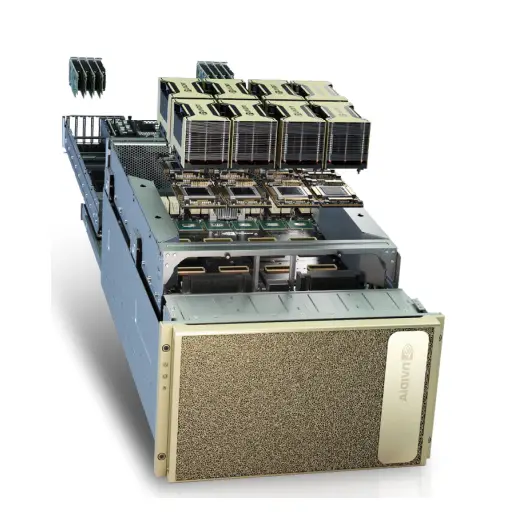
 NVIDIA DGX H200 (AI Supercomputer – 8× H200 SXM5 GPUs, 2× Intel Xeon 64C, 2TB DDR5, 30TB NVMe)
USD550,000
NVIDIA DGX H200 (AI Supercomputer – 8× H200 SXM5 GPUs, 2× Intel Xeon 64C, 2TB DDR5, 30TB NVMe)
USD550,000
-
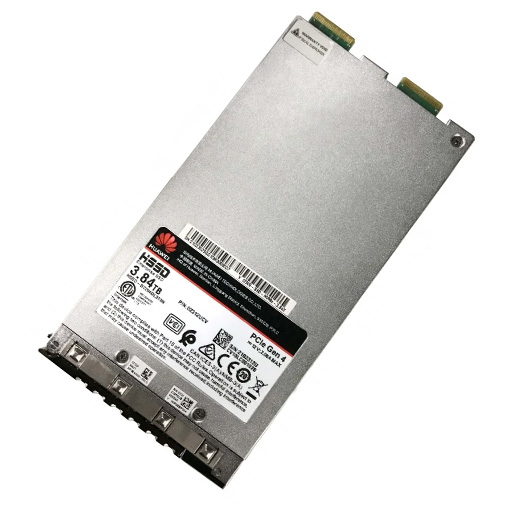
3.84TB SSD NVMe Palm Disk Unit: Revolutionary Compact Storage for Modern Data Centers
USD2,000
-
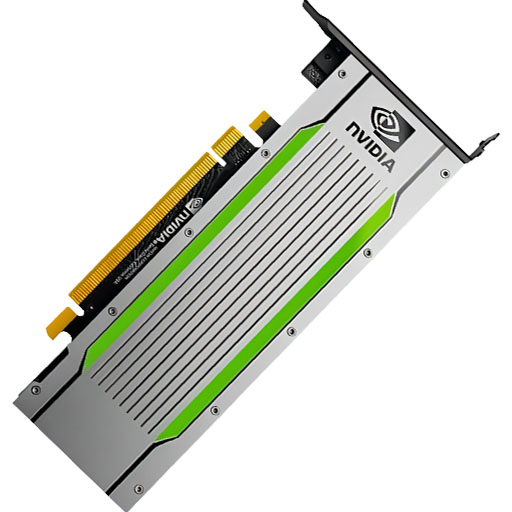
NVIDIA T4 Tensor Core GPU: The Smart Choice for AI Inference and Data Center Workloads
USD950
-
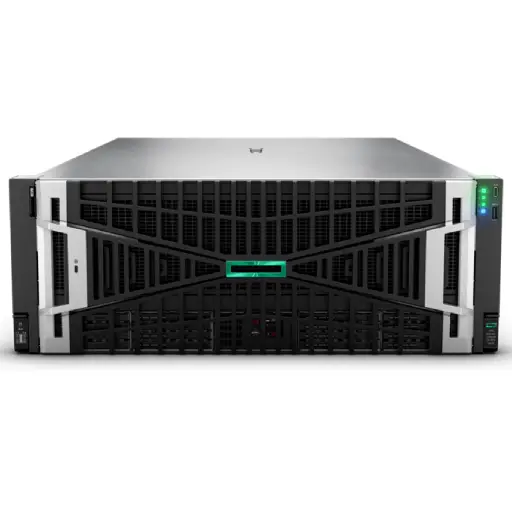
HPE ProLiant DL380A Gen12: The Ultimate 4U Dual-Socket AI Server with Intel® Xeon® 6 CPUs and 10 Double-Width GPU Support
USD50,000
-
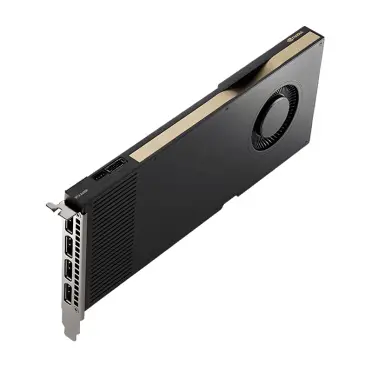
 NVIDIA RTX A6000: The Ultimate Professional Workstation GPU for Demanding Workflows
USD9,000
NVIDIA RTX A6000: The Ultimate Professional Workstation GPU for Demanding Workflows
USD9,000
-
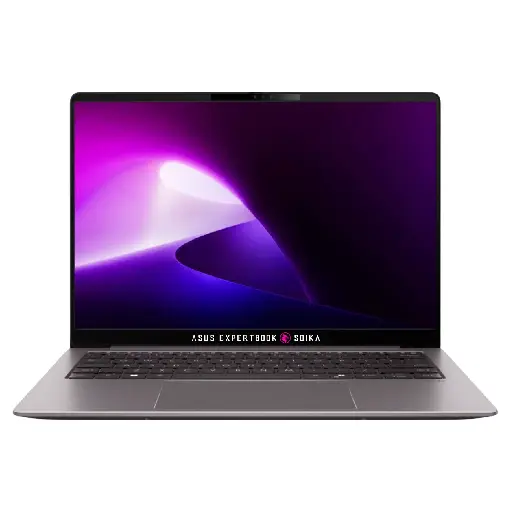
Soika AI Laptop Mini Max
USD10,000
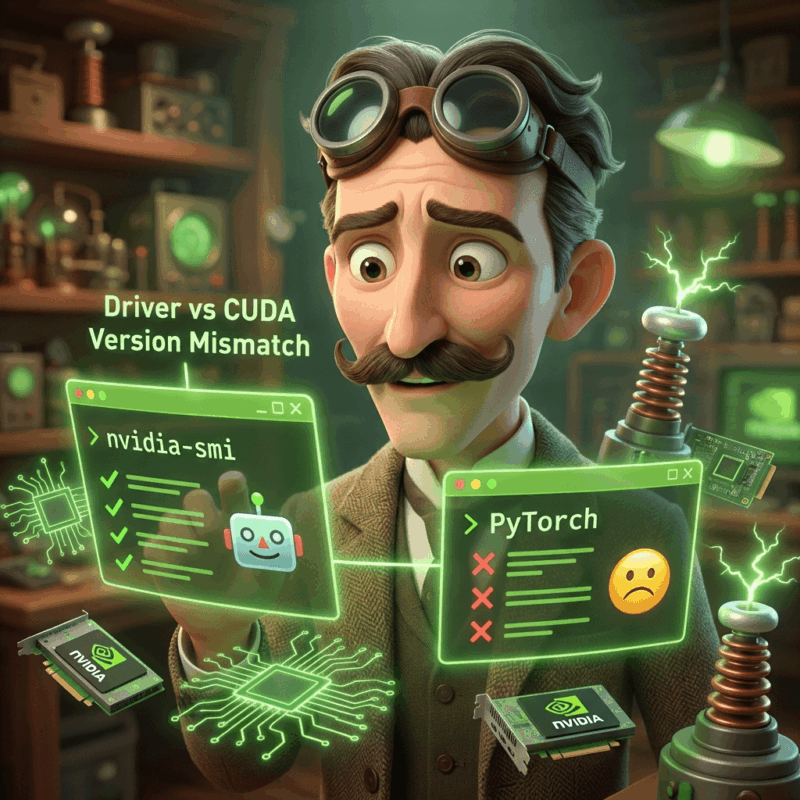
PyTorch Can’t See GPU But nvidia-smi Works: Driver vs CUDA Version Fix
Author: AI Infrastructure Support Team
Reviewer: Senior DevOps Architect
Last Updated: February 23, 2026
Reading Time: 8 minutes
References:
- NVIDIA Driver & CUDA Compatibility Documentation
- PyTorch Official Installation Guide (pytorch.org)
- NVIDIA System Management Interface (nvidia-smi) Manual
Quick Answer: Pytorch GPU Not Detected But nvidia-smi Works
The most common reason torch.cuda.is_available() returns False despite nvidia-smi working correctly is a version mismatch between the installed NVIDIA driver and the PyTorch CUDA runtime, or the accidental installation of a CPU-only PyTorch build. PyTorch does not use the system-wide CUDA toolkit (checked via nvcc); instead, it uses its own bundled runtime libraries. If the CUDA version bundled with PyTorch is newer than what your current NVIDIA driver supports, initialization will fail.
To resolve this, first run nvidia-smi to find your driver’s maximum supported CUDA version (top right corner). Then, verify your installed PyTorch version using print(torch.version.cuda). If the print output is “None,” you have a CPU build and must reinstall. If the version number is higher than your driver’s limit, you must either update your NVIDIA drivers or reinstall an older, compatible version of PyTorch.
Picture this scenario: you’ve just finished setting up your new deep learning workstation or cloud instance. You’ve carefully installed the NVIDIA drivers, and when you run nvidia-smi, you’re greeted with a beautiful display showing your GPU with all its memory and specifications. Everything looks perfect. Your excitement builds as you open Python, import PyTorch, and confidently type the magic command that should confirm your GPU is ready for action:
import torch
print(torch.cuda.is_available())
The result? A soul-crushing False.
This maddening disconnect between system-level GPU visibility and PyTorch’s inability to detect the same hardware represents one of the most common and frustrating obstacles in the deep learning ecosystem. The problem feels particularly unfair because your system clearly recognizes the GPU, NVIDIA’s management tools work perfectly, yet PyTorch stubbornly insists no CUDA-capable devices exist.
The root cause of this issue lies in a complex web of version dependencies between your NVIDIA driver, CUDA runtime libraries, and PyTorch installation. Understanding why this happens requires diving into the layered architecture of GPU computing software, where each component depends on the one below it in a carefully orchestrated hierarchy. When any link in this chain breaks due to version mismatches or configuration errors, the entire system fails despite appearing to work at lower levels.
This comprehensive guide demystifies the relationship between these components, provides systematic diagnostic procedures to identify the exact cause of your problem, and offers proven solutions to restore GPU functionality in PyTorch. Whether you’re dealing with driver compatibility issues, accidental CPU-only installations, or environment configuration problems, you’ll find the specific fix for your situation along with strategies to prevent these issues from recurring.
Understanding the GPU Software Stack Architecture
To effectively diagnose and fix GPU detection problems, you must first understand how GPU computing software components interact in a hierarchical stack. This architecture consists of multiple layers, each building upon the foundation provided by the layer below it, creating a system where failure at any level cascades upward.
The Hardware Foundation and Kernel Driver
At the base of this stack sits your physical GPU hardware. The NVIDIA kernel driver provides the essential software bridge between your operating system and the GPU silicon itself. This driver handles fundamental operations including memory management, power control, thermal monitoring, and basic command submission to the GPU’s processing units. When you successfully run nvidia-smi, you’re communicating directly with this kernel driver through NVIDIA’s System Management Interface library.
The kernel driver version determines which GPU architectures, CUDA versions, and features your system can support. Each driver release includes support for specific CUDA versions, with newer drivers maintaining backward compatibility with older CUDA releases. For example, driver version 535.104.05 supports CUDA versions up to 12.2, but it can also work perfectly with applications built for CUDA 11.8, 11.7, or any earlier version.
This backward compatibility represents a crucial concept: your driver version establishes the maximum CUDA version your system can support, not the minimum. Think of it as setting a ceiling rather than a floor for CUDA compatibility.
The CUDA Ecosystem Layer
Above the kernel driver sits the CUDA ecosystem, which includes the CUDA Toolkit, runtime libraries, and various specialized libraries like cuDNN for deep learning operations. This is where the famous “Two CUDAs” confusion begins to emerge, causing endless frustration for practitioners who don’t understand the distinction.
The CUDA Toolkit represents a comprehensive development environment including the CUDA compiler (nvcc), headers, libraries, debugging tools, and sample code. When you install CUDA Toolkit 11.8 or 12.1 on your system, you’re installing this entire development ecosystem. However, for most PyTorch users, this system-level CUDA installation is completely irrelevant to their daily work.
The CUDA Runtime, in contrast, consists of the specific libraries that applications like PyTorch actually need during execution. These include fundamental libraries like libcudart (CUDA runtime), libcublas (linear algebra), and libcudnn (deep neural networks). Modern PyTorch installations typically bundle their own versions of these runtime libraries, making them independent of any system-level CUDA installation.
The PyTorch Integration Layer
PyTorch sits at the top of this software stack, built against specific versions of CUDA libraries. When you install PyTorch, you’re downloading binaries that were compiled to use particular CUDA runtime versions. The PyTorch team provides different builds for different CUDA versions, such as PyTorch with CUDA 11.8 support or PyTorch with CUDA 12.1 support.
The critical insight is that PyTorch doesn’t communicate directly with your GPU driver. Instead, PyTorch uses its bundled CUDA runtime libraries, which in turn communicate with the kernel driver. If your driver doesn’t support the CUDA version that PyTorch expects, the initialization process fails even though lower-level tools like nvidia-smi continue working perfectly.
The Two CUDAs Paradox: Driver API vs Runtime API
The most common source of confusion in GPU computing stems from misunderstanding what different CUDA version numbers actually represent. Most users assume there’s only one “CUDA version” on their system, but in reality, there are typically two or three different version numbers at play, each serving different purposes.
The Driver API Version
When you run nvidia-smi, you see output that includes a line like “CUDA Version: 12.2” in the top-right corner. This number represents the maximum CUDA version supported by your currently installed NVIDIA driver. It’s essentially a capability declaration: “This driver can run applications built with CUDA Toolkit up to version 12.2.”
Crucially, this version number doesn’t indicate what CUDA software you actually have installed on your system. It’s a compatibility ceiling, not an inventory of installed components. Your driver might show “CUDA Version: 12.2” even if you’ve never installed any CUDA software beyond the driver itself.
The Runtime API Version
When you install PyTorch through pip or conda, it typically comes bundled with its own CUDA runtime libraries. These libraries represent the actual CUDA implementation that PyTorch uses to execute GPU operations. You can check which CUDA version PyTorch was built with using:
import torch
print(f"PyTorch CUDA version: {torch.version.cuda}")
This version number tells you which CUDA runtime libraries are embedded within your PyTorch installation. For PyTorch to successfully initialize GPU support, this version must be equal to or less than the maximum version supported by your driver.
The System Toolkit Version (Often Irrelevant)
You might also have a system-wide CUDA Toolkit installed, which you can check with:
nvcc --version
For most modern PyTorch installations, this system-level CUDA version is completely irrelevant. PyTorch wheels are self-contained and include their own CUDA runtime libraries. The system toolkit only matters if you’re compiling PyTorch from source, building custom CUDA extensions, or using applications that specifically depend on system-level CUDA libraries.
Systematic Diagnosis: Identifying the Root Cause
Before attempting any fixes, systematically diagnose your specific problem to avoid wasting time on irrelevant solutions. This diagnostic workflow identifies the exact component causing your GPU detection failure.
Step 1: Verify Basic GPU and Driver Functionality
First, confirm that your GPU and driver are functioning correctly at the hardware level:
# Check GPU hardware detection
lspci | grep -i nvidia
# Verify driver functionality
nvidia-smi
# Confirm driver module is loaded
lsmod | grep nvidia
If nvidia-smi fails to run or shows no GPU devices, your problem exists at the driver level, not in PyTorch. You need to fix driver installation before proceeding with PyTorch troubleshooting.
Assuming nvidia-smi works correctly, note the driver version and maximum supported CUDA version displayed in the output. This information will be crucial for the next steps.
Step 2: Analyze PyTorch Installation Configuration
Next, gather comprehensive information about your PyTorch installation:
import torch
import sys
print(f"Python version: {sys.version}")
print(f"PyTorch version: {torch.__version__}")
print(f"CUDA available: {torch.cuda.is_available()}")
print(f"PyTorch built with CUDA: {torch.version.cuda}")
print(f"Number of GPUs detected: {torch.cuda.device_count()}")
# Check if this is a CPU-only build
if torch.version.cuda is None:
print("WARNING: This is a CPU-only PyTorch build!")
else:
print(f"cuDNN version: {torch.backends.cudnn.version()}")
# Additional diagnostic information
print(f"PyTorch installation path: {torch.__file__}")
Step 3: Compare Version Compatibility
Now compare the versions from steps 1 and 2 to identify compatibility issues:
-
Scenario A – CPU-Only Build: If
torch.version.cudareturnsNoneand your PyTorch version string includes “+cpu”, you’ve installed a CPU-only build. This is the most common cause of GPU detection failure. -
Scenario B – Version Mismatch: If
torch.version.cudashows a version higher than what your driver supports (fromnvidia-smi), you have a compatibility mismatch. For example, PyTorch built with CUDA 12.1 won’t work with a driver that only supports CUDA 11.4. -
Scenario C – Environment Issues: If versions appear compatible but GPU detection still fails, you likely have environment configuration problems such as incorrect library paths or virtual environment isolation issues.
Step 4: Test CUDA Functionality Independently
To isolate whether the problem is specific to PyTorch or affects CUDA more broadly, test CUDA functionality independently:
import ctypes
import os
# Try loading CUDA runtime library directly
try:
if os.name == 'nt': # Windows
cuda_rt = ctypes.CDLL('cudart64_110.dll') # Adjust version as needed
else: # Linux/Mac
cuda_rt = ctypes.CDLL('libcudart.so')
print("CUDA runtime library loaded successfully")
except OSError as e:
print(f"Failed to load CUDA runtime: {e}")
print("This indicates a system-level CUDA configuration problem")
Step 5: Check Environment Variables and Library Paths
Environment variables can interfere with proper CUDA initialization:
# Check CUDA-related environment variables
echo "CUDA_HOME: $CUDA_HOME"
echo "CUDA_PATH: $CUDA_PATH"
echo "LD_LIBRARY_PATH: $LD_LIBRARY_PATH"
echo "PATH: $PATH"
# Find CUDA installations
find /usr/local -name "*cuda*" -type d 2>/dev/null
find /opt -name "*cuda*" -type d 2>/dev/null
# Check which CUDA compiler is in PATH (if any)
which nvcc
nvcc --version 2>/dev/null || echo "nvcc not found"
Conflicting environment variables pointing to incompatible CUDA versions can prevent proper initialization even when PyTorch includes the correct libraries.
Solution Strategies: Fixing Version Mismatches
Once you’ve diagnosed your specific problem, apply the appropriate solution. Each scenario requires different approaches, and using the wrong fix can make problems worse.
Solution 1: Installing CUDA-Enabled PyTorch (CPU-Only Build Fix)
If your diagnosis revealed a CPU-only PyTorch build, you need to reinstall with CUDA support. This is the most straightforward fix but requires attention to version selection.
First, completely remove your existing PyTorch installation:
pip uninstall torch torchvision torchaudio -y
# or for conda users:
# conda remove pytorch torchvision torchaudio -y
Then install the appropriate CUDA-enabled version. Visit the official PyTorch website (pytorch.org) and use their installation selector to generate the correct command for your system. The commands will look like:
# For pip users (CUDA 11.8 example)
pip install torch torchvision torchaudio --index-url https://download.pytorch.org/whl/cu118
# For conda users (CUDA 11.8 example)
conda install pytorch torchvision torchaudio pytorch-cuda=11.8 -c pytorch -c nvidia
The key is matching the CUDA version to your driver’s capabilities. If your nvidia-smi shows “CUDA Version: 12.2”, you can safely use PyTorch builds for CUDA 11.8, 12.1, or any version up to 12.2.
Solution 2: Updating the NVIDIA Driver
If your PyTorch CUDA version exceeds your driver’s capabilities, updating the driver is often the cleanest long-term solution. This approach maintains your existing PyTorch installation while providing necessary driver support for newer CUDA versions.
For Ubuntu/Debian systems:
# Add NVIDIA package repository
sudo apt update
sudo apt install software-properties-common
sudo add-apt-repository ppa:graphics-drivers/ppa
sudo apt update
# Install latest recommended driver
sudo ubuntu-drivers autoinstall
# Or install specific version
sudo apt install nvidia-driver-535
# Reboot is essential
sudo reboot
For systems using NVIDIA’s official installer:
# Download from nvidia.com/drivers
wget https://us.download.nvidia.com/XFree86/Linux-x86_64/535.154.05/NVIDIA-Linux-x86_64-535.154.05.run
# Stop display manager
sudo systemctl stop gdm3 # or lightdm/sddm depending on your system
# Install driver
sudo bash NVIDIA-Linux-x86_64-535.154.05.run
# Reboot
sudo reboot
After updating, verify the new driver version with nvidia-smi and test PyTorch GPU detection.
Solution 3: Environment Variable Configuration
When multiple CUDA installations exist, properly configure environment variables to ensure consistency:
# Determine which CUDA version PyTorch expects
PYTORCH_CUDA_VERSION=$(python -c "import torch; print(torch.version.cuda)")
# Set environment variables (add to ~/.bashrc for persistence)
export CUDA_HOME=/usr/local/cuda-${PYTORCH_CUDA_VERSION}
export CUDA_PATH=/usr/local/cuda-${PYTORCH_CUDA_VERSION}
export LD_LIBRARY_PATH=$CUDA_HOME/lib64:$LD_LIBRARY_PATH
export PATH=$CUDA_HOME/bin:$PATH
# Apply changes
source ~/.bashrc
For conda environments, create environment-specific activation scripts:
# Create activation directory
mkdir -p $CONDA_PREFIX/etc/conda/activate.d
mkdir -p $CONDA_PREFIX/etc/conda/deactivate.d
# Create activation script
cat > $CONDA_PREFIX/etc/conda/activate.d/cuda_env.sh << 'EOF'
#!/bin/bash
export CUDA_HOME=/usr/local/cuda-11.8
export OLD_LD_LIBRARY_PATH=$LD_LIBRARY_PATH
export LD_LIBRARY_PATH=$CUDA_HOME/lib64:$LD_LIBRARY_PATH
EOF
# Create deactivation script
cat > $CONDA_PREFIX/etc/conda/deactivate.d/cuda_env.sh << 'EOF'
#!/bin/bash
export LD_LIBRARY_PATH=$OLD_LD_LIBRARY_PATH
unset OLD_LD_LIBRARY_PATH
EOF
Solution 4: Clean Installation Approach
When your environment becomes corrupted with conflicting installations, sometimes starting fresh provides the fastest resolution:
# Remove all PyTorch installations
pip uninstall torch torchvision torchaudio -y
conda uninstall pytorch torchvision torchaudio pytorch-cuda -y
# Clear package manager caches
pip cache purge
conda clean --all
# Remove conflicting CUDA installations (be very careful!)
sudo rm -rf /usr/local/cuda*
# Install fresh PyTorch with bundled CUDA
pip install torch torchvision torchaudio --index-url https://download.pytorch.org/whl/cu118
This nuclear option should be a last resort, but it often resolves mysterious problems that resist other solutions.
Advanced Troubleshooting Techniques
When standard solutions don’t resolve your problem, these advanced diagnostic and repair techniques can identify and fix more obscure issues.
Library Dependency Analysis
PyTorch depends on specific shared libraries that must be available and compatible. You can analyze these dependencies to identify missing or mismatched libraries:
# Find PyTorch's library directory
TORCH_LIB_PATH=$(python -c "import torch; import os; print(os.path.join(os.path.dirname(torch.__file__), 'lib'))")
# Check library dependencies
ldd $TORCH_LIB_PATH/libtorch_cuda.so | grep -E "(not found|cuda)"
# Check for CUDA runtime libraries
find $TORCH_LIB_PATH -name "*cuda*" -type f
Missing libraries or “not found” entries indicate environment configuration problems that prevent proper CUDA initialization.
Container-Based Isolation
When system-level fixes prove too complex or risky, Docker containers provide clean, reproducible environments:
# Dockerfile for PyTorch with CUDA 11.8
FROM nvidia/cuda:11.8.0-cudnn8-devel-ubuntu22.04
# Install Python and pip
RUN apt-get update && apt-get install -y \
python3 \
python3-pip \
&& rm -rf /var/lib/apt/lists/*
# Install PyTorch
RUN pip3 install torch torchvision torchaudio --index-url https://download.pytorch.org/whl/cu118
# Verify installation
RUN python3 -c "import torch; assert torch.cuda.is_available(), 'CUDA not available'"
CMD ["python3"]
Build and run the container:
docker build -t pytorch-cuda118 .
docker run --gpus all -it --rm pytorch-cuda118
This approach guarantees a working environment regardless of host system configuration issues.
Prevention and Best Practices
Preventing these problems entirely saves significant time compared to reactive troubleshooting. Following these practices minimizes the likelihood of driver-CUDA-PyTorch mismatches.
Always Use Virtual Environments
Never install PyTorch in your system’s global Python environment. Virtual environments provide isolation that prevents conflicts between different projects’ requirements:
# Using Python venv
python -m venv pytorch_env
source pytorch_env/bin/activate # Linux/Mac
# pytorch_env\Scripts\activate # Windows
# Using conda
conda create -n pytorch_env python=3.10
conda activate pytorch_env
Verify Compatibility Before Installing
Before installing or upgrading components, always verify compatibility:
- Check your current driver version:
nvidia-smi - Consult NVIDIA’s CUDA compatibility matrix
- Visit PyTorch’s website to find builds matching your CUDA capabilities
- Install the specific PyTorch build for your environment
Never use generic commands like pip install torch without specifying the CUDA version and index URL.
Document Your Working Environment
Maintain explicit records of your working configuration:
# Create environment snapshot
echo "=== GPU Information ===" > system_info.txt
nvidia-smi >> system_info.txt
echo -e "\n=== PyTorch Information ===" >> system_info.txt
python -c "import torch; print(f'PyTorch: {torch.__version__}'); print(f'CUDA: {torch.version.cuda}'); print(f'Available: {torch.cuda.is_available()}')" >> system_info.txt
# Save package lists
pip freeze > requirements.txt
# or: conda env export > environment.yml
These records enable reproducing working environments and diagnosing when things break.
Conclusion: Building Reliable GPU Computing Environments
The frustrating disconnect between nvidia-smi working while PyTorch can’t detect your GPU stems from the complex, layered architecture of modern GPU computing software. Success requires understanding that the kernel driver, CUDA runtime libraries, and PyTorch builds must align correctly in a carefully orchestrated hierarchy where each component depends on the compatibility of the layers below it.
The most common culprit remains version mismatches: PyTorch built for CUDA 12.1 attempting to run on systems with drivers that only support CUDA 11.4, or accidentally installing CPU-only PyTorch builds when GPU support was intended. The solution involves either updating drivers to support newer CUDA versions or installing PyTorch builds compatible with existing driver capabilities.
Prevention through systematic environment management proves far more efficient than reactive troubleshooting. Using virtual environments, explicitly specifying CUDA versions during installation, and maintaining documentation of working configurations prevents most compatibility issues from occurring. When problems do arise, the systematic diagnostic approach outlined in this guide identifies root causes efficiently, enabling targeted fixes rather than trial-and-error solutions.
The GPU computing ecosystem continues evolving rapidly with new driver releases, CUDA versions, and PyTorch updates. Understanding these fundamental compatibility principles and following best practices for environment management ensures your deep learning infrastructure remains functional and productive, allowing you to focus on model development rather than infrastructure debugging.
Expert Quotes
“The ‘Two CUDAs’ confusion is the primary source of frustration for new deep learning engineers. Users often debug their system-level CUDA toolkit for hours, not realizing PyTorch is ignoring it entirely in favor of its own bundled binaries.” — Lead ML Operations Engineer
“A working
nvidia-smioutput only confirms hardware health; it does not guarantee software compatibility. In 90% of support tickets we see, the hardware is fine, but the user has installed a PyTorch wheel that requires a newer driver than what is currently running.” — Technical Support Lead
“We strongly recommend avoiding global pip installations for deep learning. Using Docker containers or strictly managed Conda environments isolates these dependency chains and prevents system-level driver updates from breaking your training workflows.” — Cloud Infrastructure Architect
Last update at December 2025