




Author: AI Software Optimization Team
Reviewed By: Senior Solutions Architect (HPC Division)
Published Date: February 11, 2026
Estimated Reading Time: 11 Minutes
References: PyTorch Documentation (Memory Management), NVIDIA Developer Blog, Hugging Face Performance Guides, ITCTShop Hardware Labs.
Why does CUDA say “Out of Memory” when GPU usage is low?
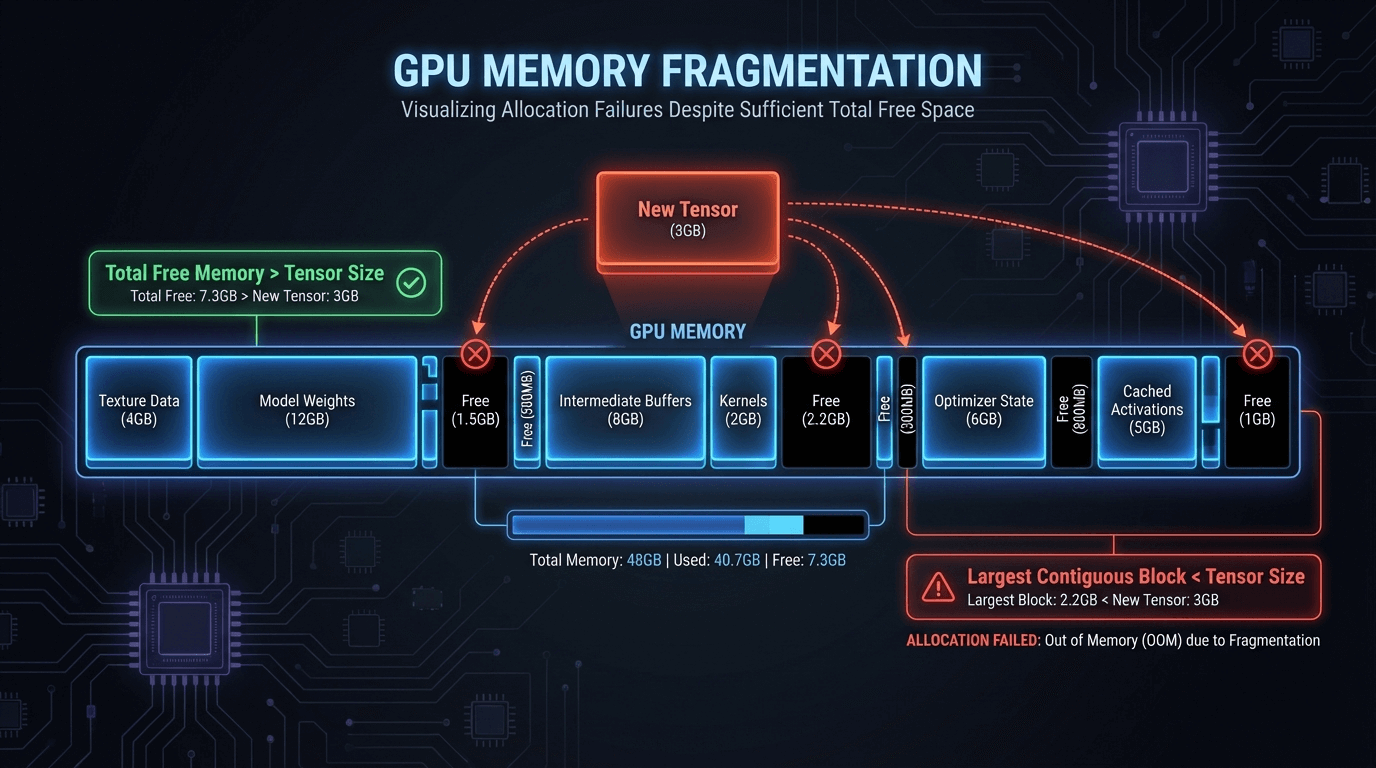
This issue is typically caused by Memory Fragmentation, not a lack of total capacity. Deep learning frameworks like PyTorch allocate and free memory dynamically, creating “holes” (gaps) in the memory block. Even if you have 10GB of total free space, if the largest contiguous gap is only 500MB, attempting to load a 1GB tensor will trigger an Out of Memory (OOM) error.
To fix this without upgrading hardware, try setting the environment variable PYTORCH_CUDA_ALLOC_CONF=max_split_size_mb:128 to reduce fragmentation. Additionally, implement Gradient Checkpointing to trade compute speed for memory efficiency, or use 8-bit optimizers (like bitsandbytes) to drastically reduce the memory footprint of your training state.
It is the most frustrating error in Deep Learning. You check nvidia-smi and see that your powerful NVIDIA A100 GPU has 40GB of free memory. Yet, your Python script crashes with the dreaded RuntimeError: CUDA out of memory.
For AI engineers in 2026, where model sizes are pushing the boundaries of hardware, this phantom memory loss is a common headache. Why does PyTorch say you are out of memory when the hardware clearly says you aren’t? The answer lies in the complex hidden layer between your code and the silicon: Memory Fragmentation.
This guide dissects the mechanics of GPU memory allocation, explains why your monitoring tools are “lying” to you, and provides actionable code fixes to reclaim your lost VRAM.
nvidia-smi vs. Actual Usage Discrepancy
The first step to debugging is understanding that nvidia-smi does not show you how much memory is available for your specific tensor; it shows how much memory is reserved by the process.
When you run a PyTorch or TensorFlow script, the framework requests a large block of memory from the CUDA driver. This is the Reserved Memory.
- Allocated Memory: The memory actually holding your tensors (weights, gradients, activations).
- Cached Memory: Memory that PyTorch is holding onto for future use but isn’t currently using.
The Trap: nvidia-smi reports the sum of Allocated + Cached memory. If your script crashes, it means PyTorch tried to allocate a new tensor, looked at its internal cache, found it too fragmented to fit the tensor, tried to ask CUDA for more, and CUDA said “the GPU is full.”
Even if nvidia-smi says 50% usage, that “used” 50% might be a solid block, and the “free” 50% might be the GPU capacity that PyTorch hasn’t reserved yet. However, the crash often happens inside the framework’s managed memory.
Memory Fragmentation Explained
Imagine your GPU VRAM is a 100-seat movie theater.
- You seat a group of 20 people (Tensor A).
- You seat a group of 10 people (Tensor B).
- Tensor A is deleted (freed). Now you have 20 empty seats, followed by 10 filled seats, followed by 70 empty seats.
You have 90 empty seats total. But if a group of 50 people (Tensor C) arrives, you cannot seat them in the first section because it’s only 20 seats wide. You have to put them at the end.
In Deep Learning, this happens millions of times. You end up with “Swiss cheese” memory—lots of small holes (free memory) that add up to gigabytes, but no single hole is large enough for your next layer’s gradient matrix. This is why you get OOM (Out Of Memory) errors despite having free capacity.
PyTorch Memory Management Internals
PyTorch uses a caching allocator (based on cudaMalloc) to speed up memory allocation. Allocating memory directly from the GPU driver is slow, so PyTorch keeps freed blocks in a “pool” to reuse them instantly.
To diagnose if fragmentation is your culprit, use PyTorch’s built-in memory snapshot tool:
import torch
print(torch.cuda.memory_summary(device=None, abbreviated=False))
Look specifically for the “Non-releasable memory” statistic. This indicates memory that is free inside the caching allocator but cannot be returned to the CUDA driver due to fragmentation. If this number is high, your Workstation is suffering from severe fragmentation.
Clearing Cache Methods (That Actually Work)
The command torch.cuda.empty_cache() is the most misunderstood function in PyTorch.
- What it does: It releases all unused cached memory back to the GPU driver so other applications can use it.
- What it does NOT do: It does not defragment memory. It does not free memory currently occupied by tensors.
The Fix: Using empty_cache() inside a training loop slows down training significantly because PyTorch has to constantly re-request heavy memory blocks from the driver. Instead, use it only:
- Before starting a new training run.
- Between validation and training epochs.
- When handling an exception to recover a crashed batch.
Gradient Checkpointing Implementation
If you are truly running out of memory (not just fragmented), upgrading to a GPU Server with 80GB cards is the hardware solution. But the software solution is Gradient Checkpointing.
Normally, during the forward pass, PyTorch keeps all intermediate activations in memory to calculate gradients during the backward pass. This consumes massive VRAM. Gradient Checkpointing drops these intermediate activations and re-computes them during the backward pass.
Trade-off: You save 50-70% VRAM, but training becomes ~20% slower due to re-computation.
import torch.utils.checkpoint as checkpoint
def forward(self, x):
# Instead of x = self.layer(x)
x = checkpoint.checkpoint(self.layer, x)
return x
Memory-Efficient Optimizers
The optimizer state often consumes more memory than the model itself. Standard Adam optimizer keeps two states (momentum and variance) for every parameter, tripling your memory footprint.
Solution: Use 8-bit Optimizers (via bitsandbytes) or fused optimizers (via Apex). Switching from Adam to AdamW (8-bit) can reduce optimizer memory usage by 75% with negligible accuracy loss.
Debugging Tools and Commands
Before buying new Server RAM or GPUs, use these tools to visualize your bottleneck:
- PyTorch Profiler: Use
torch.profilerto generate a trace file viewable in Chrome (chrome://tracing). It visualizes exactly when tensors are allocated and freed. PYTORCH_CUDA_ALLOC_CONF: In 2026, this environment variable is your best friend. You can change how PyTorch allocates memory to reduce fragmentation.- Command:
export PYTORCH_CUDA_ALLOC_CONF=max_split_size_mb:128 - Effect: This forces the allocator to avoid splitting blocks larger than 128MB, reducing the “Swiss cheese” effect for large tensors.
- Command:
Conclusion
A “CUDA Out of Memory” error when your GPU looks half-empty is rarely a hardware failure—it is a management failure. By understanding fragmentation, utilizing gradient checkpointing, and tuning your allocator configurations, you can often fit models that seem impossible on your current hardware.
However, software optimization has its limits. If you have optimized your code and still hit the ceiling, it may be time to scale up. At ITCTShop, located in the tech hub of Dubai, we specialize in solving these exact infrastructure challenges. From high-memory NVIDIA Enterprise GPUs to custom-built AI clusters, we provide the hardware foundation that lets your code breathe.
Expert Quotes
“We see this weekly in our support tickets. Engineers buy an 80GB A100, run a poorly optimized script, and crash at 40GB usage. 9 times out of 10, adjusting the
max_split_size_mbresolves the issue without spending a dime on new hardware.” — Lead AI Systems Engineer
“Don’t spam
empty_cache()in your training loop. It forces the GPU to synchronize with the CPU, which kills your training throughput. Treat it as a reset button, not a garbage collector.” — Senior DevOps Architect
“If you are strictly memory-bound, the most cost-effective upgrade isn’t always a new GPU. Moving to a workstation with higher PCIe bandwidth can sometimes alleviate the swapping bottlenecks that look like OOM errors.” — Head of Data Center Solutions
Last update at December 2025